How to find photos of your card, passport or ID on your iPhone
Somewhere in your photo library there is a picture of your bank card, taken to type the number in once. A passport page you photographed for a form. A screenshot of a transfer with your IBAN on it. You did not keep them on purpose, and you have no idea how many there are. Start with what your iPhone already does: open Photos, tap Search and type a word you would expect on the picture — passport, Visa, the name of your bank. Photos reads the text in your pictures, so this is free and finds a good part of them. But you have to guess the word, and a card photographed from the back has no brand on it, a passport may say Reisepass or Pasaporte. And it matches words, not numbers: the photo that is only sixteen digits stays hidden. Scour starts where that search stops, and checks every photo for you. Card numbers are free in Scour; passports, ID cards and bank details come with Scour Pro, a one-time purchase.
Published October 9, 2026
What it looks for
Before Scour reads anything, it says what it is about to look for — card numbers, bank details, passports and ID cards, and more — and that all of it happens on this iPhone, with no account and nothing uploaded. It also says, on the first page, that card numbers are free and the rest come with Pro, so you know before the scan, not after. Then it asks for access to your photos.
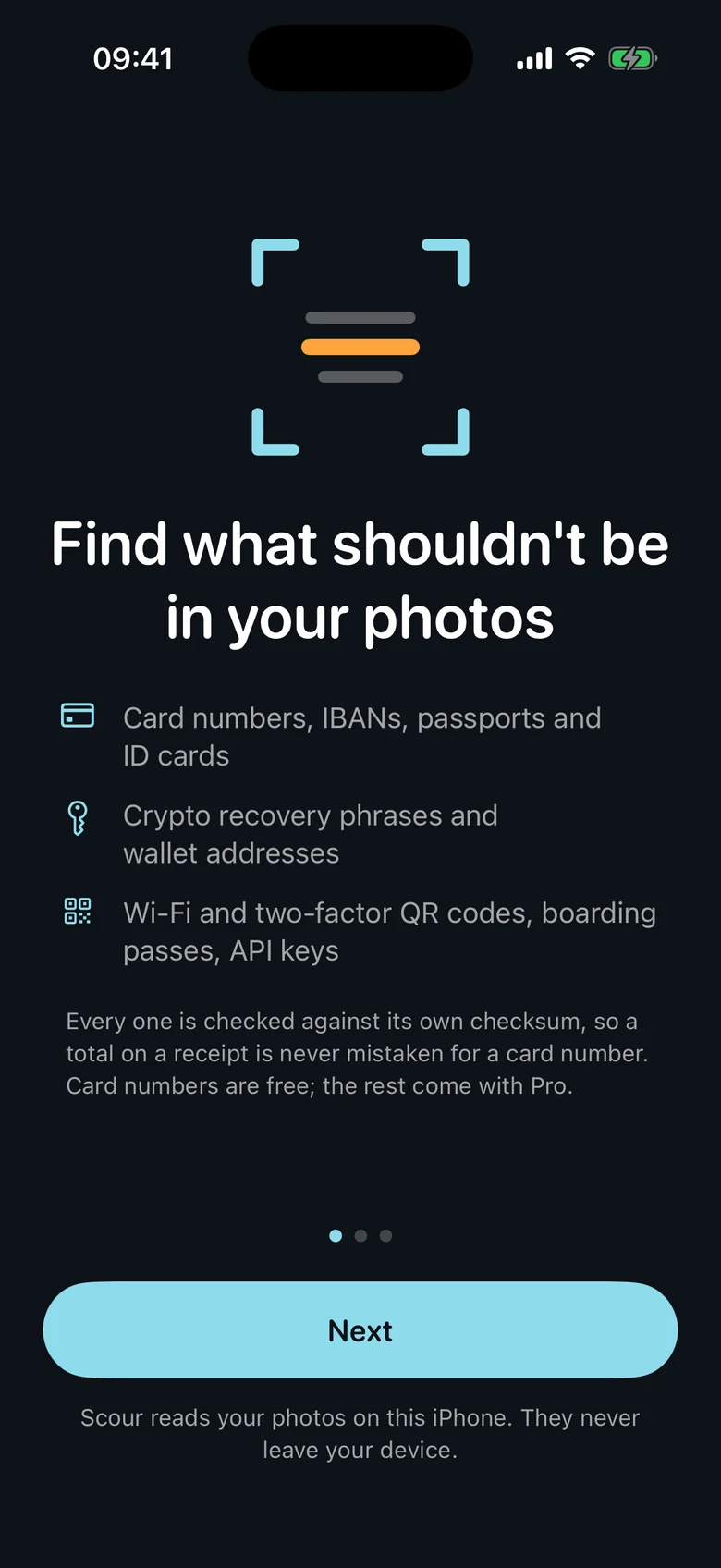
Let the scan do the guessing
Scour goes through the whole library once and reads every photo, so nothing depends on you remembering a word. When it is done you see what it found, by kind. In the free app, card numbers are opened in full, with no time limit. Everything else the same scan proved — a passport, an ID card, bank details, a recovery phrase — is shown as a count of your own photos, with a lock. Those open with Scour Pro. If the free scan finds no cards, it says exactly that: no card numbers found. It never tells you your library is clean when it has not shown you everything.
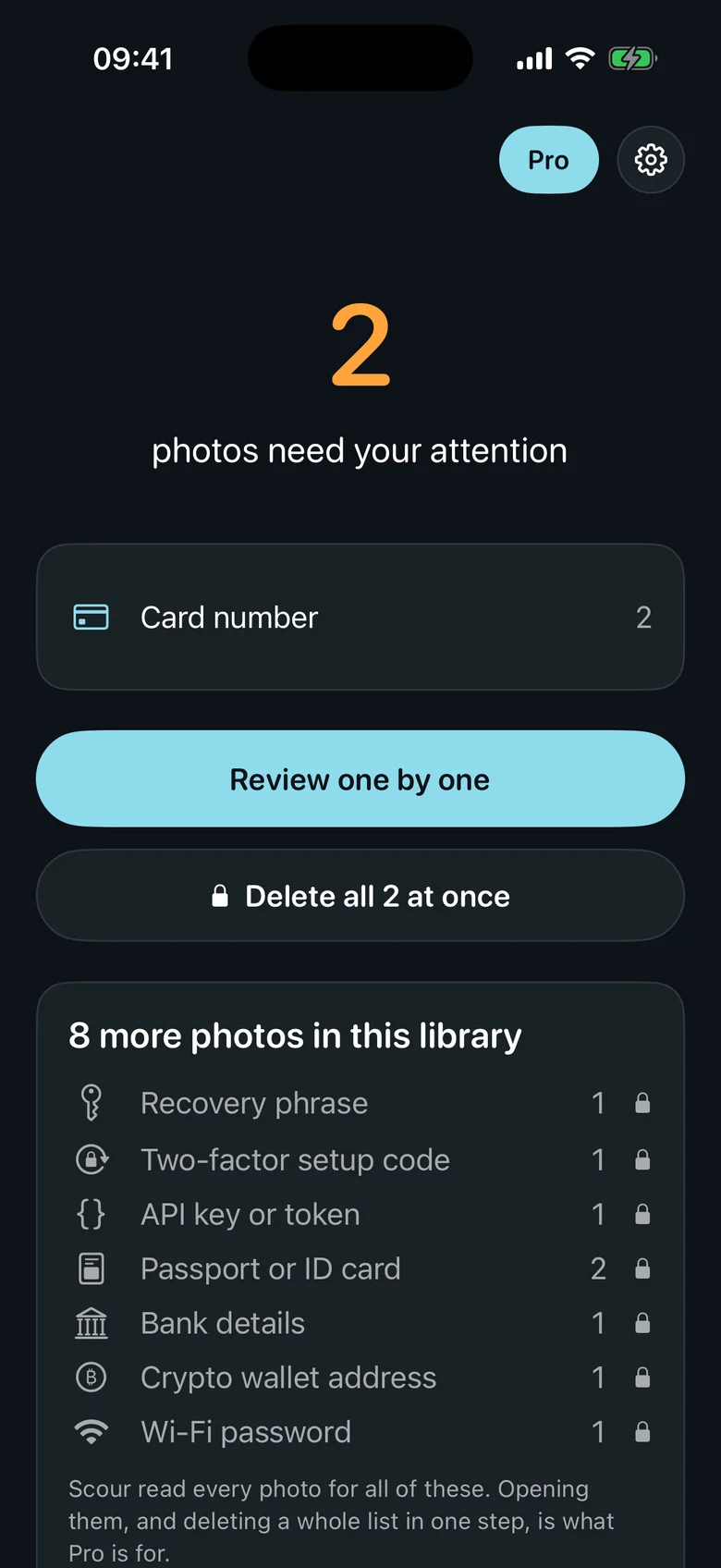
Check each one, then delete it
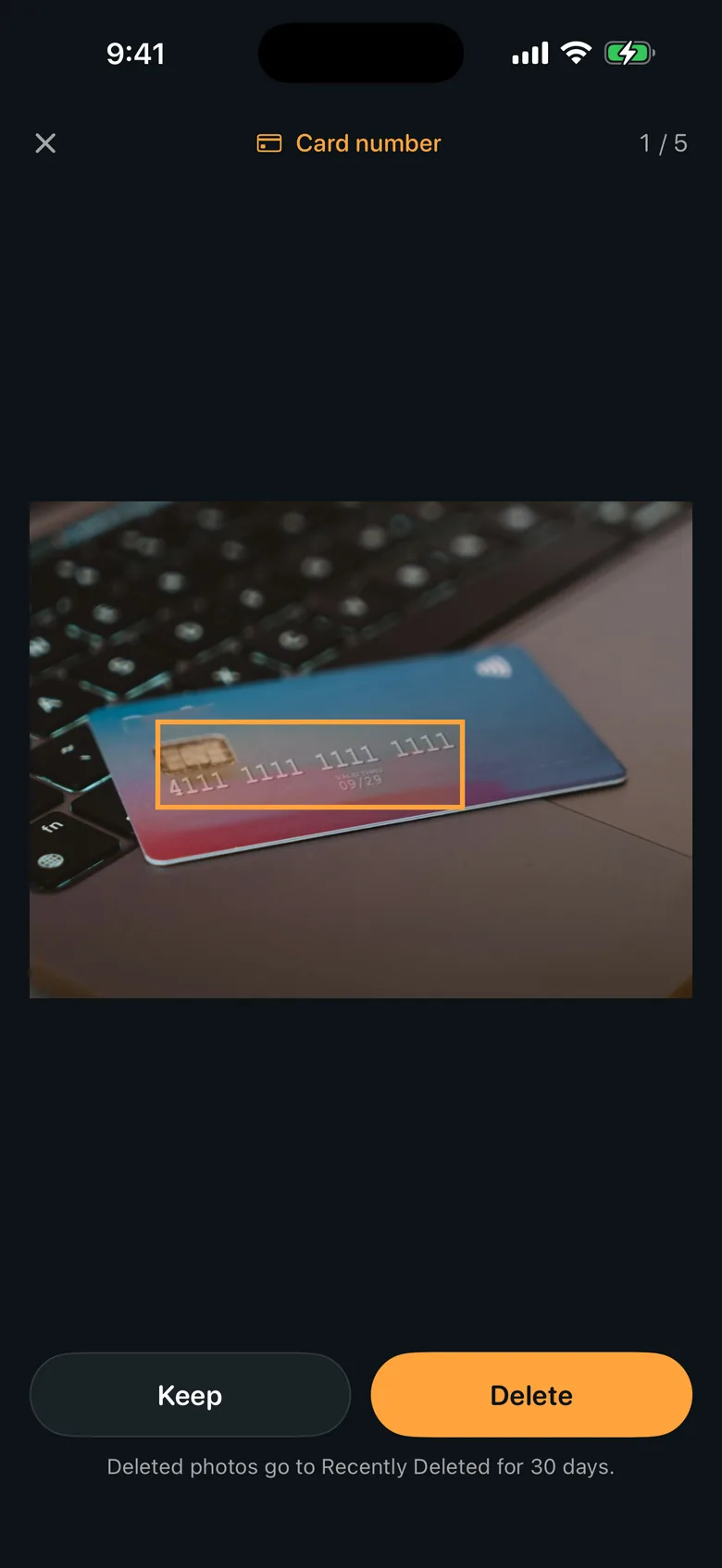
Each finding opens on the photo itself, with the number boxed so you can see what Scour saw. Keep it or delete it, and move on. Scour only flags a photo when the number actually checks out — a card number has to pass the same check the card networks use — so a date or a receipt total is not called a card. A photo you keep is not shown again. One you delete goes to Recently Deleted in Photos for thirty days, so nothing is lost by a wrong tap.
What is free
Free, with no time limit
- Scanning your whole library, as often as you like
- Card numbers, found, shown and deleted
- A count of everything else the scan found, by kind
Scour Pro, paid once
- Passports and ID cards
- Bank details (IBAN)
- Recovery phrases, Wi-Fi and two-factor codes, boarding passes
- Deleting a whole list in one step
Scour Pro is a one-time purchase, not a subscription. Everything is read on your iPhone; no photo and nothing found in one is ever uploaded.

Get Scour
Scour is on the App Store for iPhone. The product page has the full list of what it finds, the FAQ and the privacy details.